Teams transcript · exported recording file
Teams Transcript from an Exported Recording File
To make a Teams transcript with Reelscriptly, save the meeting recording to your device and select that audio or video file; this page does not access a Teams account or meeting link, and it does not transcribe live meetings.
This file-based workflow is for a Microsoft Teams transcription after a recording has been exported. Searches such as Teams meeting transcription, Microsoft Teams meeting transcription, transcribe Teams meeting, and Teams transcribe describe this same saved-file task here; they do not open a second page or change what the tool can do.
Use the audio-to-text tool with the exported file. Teams accounts, meeting URLs, and live meeting audio are outside this page's input: real-time transcription is a Teams feature, not a Reelscriptly feature.
Three checks with different audio sources
Each sample was selected as English and transcribed with timestamps. The text below is the tool output copied from that run. The first source is an excerpt from the openly licensed AMI Meeting Corpus; the other two are new locally synthesized dialogues written for these checks. None is a Teams recording. These tests concern the exact downloadable files shown here, not the quality of every Teams recording.
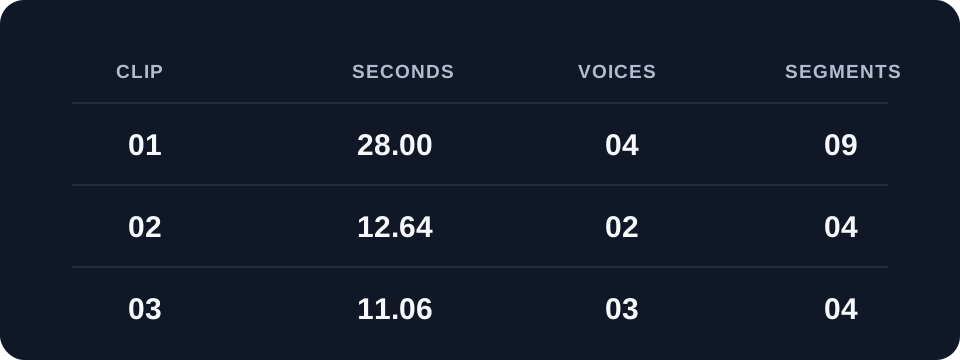
AMI meeting excerpt · participant introductions
Reference transcript:
Speaker B: “So first of all, just to kind of make sure that we all know each other, I'm Laura and I'm the project manager. Do you want to introduce yourself again?”
Speaker D: “Great.”
Speaker A: “Hi, I'm David and I'm supposed to be an industrial designer.”
Speaker B: “Okay.”
Speaker D: “And I'm Andrew and I'm, uh, our marketing expert.”
Speaker C: “Um, I'm Craig and I'm User Interface.”
Speaker B: “Great. Okay. Um, so we're designing a new remote control and, um.”
Reelscriptly output:
[00:00:00.000] So first of all just to kind make sure that we all know each other I'm Laura and
[00:00:05.500] the project manager.
[00:00:08.000] Do you want introduce yourself again?
[00:00:10.000] David,
[00:00:11.500] And i am supposed
[00:00:14.000] to be an industrial designer
[00:00:13.000] I'm Andrew and am marketing experts.
[00:00:20.000] Great, okay
[00:00:24.000] So we're designing a new remote control
Observed difference: The output omits the “Hi, I'm” before David, omits Craig's introduction, and places the 00:00:13.000 line after later timestamps. The reference wording and timing window are from the AMI manual annotations; the audio excerpt is linked above so the comparison can be checked directly.
Synthetic dialogue · correcting a meeting time
Reference dialogue:
Speaker 1: “The Teams review starts at nine forty.”
Speaker 2: “Nine fourteen not nine forty. I changed the meeting invite.”
Speaker 1: “Please save the transcript in the project folder.”
Speaker 2: “Use launch notes final as the file name.”
Reelscriptly output:
[00:00:00.000] The team's review starts at 940.
[00:00:02.740] 914 not940, I changed the meeting invite
[00:00:06.740] Please save a transcript in project folder
[00:00:09.740] Use lunch notes final as file name
Observed difference: The spoken time “nine forty” is rendered as “940”; “not nine forty” loses its space in “not940”; “launch notes final” is heard as “lunch notes final.”
Synthetic dialogue · overlapping folder correction
Reference dialogue:
Speaker 1: “I sent the recording to the shared drive.”
Speaker 2, overlapping: “Not the shared drive, the archive folder.”
Speaker 3: “I can only see the Tuesday draft.”
Speaker 1: “Check the folder called client handoff.”
Reelscriptly output:
[00:00:00.000] I sent the recording to the third-line.
[00:00:02.000] I heard drive, The archive folder
[00:00:05.000] i can only see that Tuesday draft
[00:00:08.000] Checked a folder called client handoff
Observed difference: “shared drive” becomes “third-line”; the overlapping correction starts as “I heard drive” instead of “Not the shared drive”; “Check the folder” becomes “Checked a folder.”
Teams transcript questions
How do I get a transcript of a Teams meeting?
Export the Teams recording to your device, then select that audio or video file in Reelscriptly.
Can I transcribe a Teams meeting without a recording?
No—Reelscriptly needs an exported recording file and does not transcribe live Teams meetings.
Can I transcribe a Teams meeting from a link?
No—this page does not access Teams accounts or meeting links; save the recording file to your device first.
What this page adds: a playable, openly licensed real meeting excerpt with corpus annotations, alongside two separately created synthetic tests, each paired with its reference wording and exact output from the same file-based tool.
For other saved recordings, use the audio to text tool. For a different meeting-file comparison, see the Zoom transcription tests, or return to Instagram Transcript.